Podcasting with GarageBand
This seminar examines the educational possibilities of podcasts, and shows you how to produce your own. This session will look at how podcasts are being employed in higher education, help you become familiar with the iPod and iTunes, and get you started making your own podcasts with Garage Band.
In this session you will learn:
- How to use an iPod and download podcasts with iTunes
- About the educational applications and value of podcasting
- How to create a simple enhanced podcast.
How are college professors using podcasts for teaching and learning? Your answers to this question are best formed by taking a look at (and listen to) some of the work of your colleagues. First, review these examples:
- In Dan's Mathflix, a math teacher animates objects and numbers on the screen to teach number theory.
- The growth and structure of coral is taught quite effectively by Professor Steve Palumbi's video podcasts.
- A straightforward archive of guest speakers can be useful.
- Modern Poetry:Introduction to a lesson on three modern poets, by a teacher of literature at Ole Miss. Video podcast.
- Southern Words:Created by the Study Abroad office at Ole Miss to prepare international students for the special vocabulary of the southern part iof the United States.Video podcast.
- Grammar Girls help you learn the past tense of the verb, to hang.
- Learn some Italian.A conversational approach.
- Hollandale, Mississippi:Created by the Delta Teacher Corps to describe a community where it works to build a better future. Enhanced podcast.
- Hear today's news from National Public Radio.
- It's Byzantine sometimes. Learn about emperor Constantine from this podcast lecture.
See how podcasting has insinuated itself into academic life on campuses through iTunes U. Browse some podcast examples at:
To see how podcasting is being employed in other wlks of life, from the sublime to the ridiculous, check out the podcasts that have been published at the iTunes store.
- Open iTunes on your computer.
- Select iTunes Store from the list at the left.
- Select Podcasts from the list in the white box.
- Browse the podcasts. Listen to a few.
- Don't forget to check out the iTunes U section of the iTunes store.
Browse these articles on the educational value of podcasts.
- A Podcast Primer, from Daniel Colman, an Associate Dean at Stanford University. Includes a good collection of academic podcasts.
Read Portability and Podcasts, from Power to Learn. Or listen to it as a podcast
Or ask the seminar leader to take you through the Keynote presentation on the Three C's of podcasting in higher education.
President Franklin Delano Roosevelt's radio broadcasts to the nation in the 1930's and 40's shared many characteristics of today's podcasts: they communicated serious ideas in a short period of time using he human voice. The audience listened in a comfortable, private environment. As FDR developed his style in what was at the time a new medium, his fireside chats became less formal, more personal, and more effective in uniting the country in difficult times. Click the image to the left to listen to a 1936 chat on urban vs. rural labor issues. Pay attention to the pacing, the vocabulary, and the tone of the conversation.
Then compare the style of the fireside chat with FDR's address to Congress on December 8, 1941.
The address to Congress is similar in form to a university lecture, while the fireside chat is more like a podcast.
Now it's time to make your own podcast. Consider your students -- what topic or concept are they most likley to appreciate most as a podcast?
A Sound Idea
The first step to a piquant podcast is a solid idea. Not all content makes for effective audio learning. Picture your students, earbuds implanted, on the bus or down the street, listening to a message from you. What kinds of ideas work best in this context? Teaching them how to format a bibliography, or to solve quadratic equations, may not lend themselves to an audio approach. Design an aural experience that fits their needs and their context -- a chapter summary in your calming voice that might help them prepare for next week's test, or an introduction to the essential question that will form the basis of the next unit of study. Or a brief explanation, from several perspectives, of a difficult-to-understand concept.
Listen to some sample podcasts at the iTunes Music Store. And listen to some radio commercials. Ask your students what an effective podcast should sound like. You'll get some ideas of what's possible with this medium.
Sketch out your idea, as an outline, like this:
- Calming musical intro, 10 seconds.
- Gentle reminder of next Thursday's science test, what it covers and how much it counts, 15 seconds.
- List of key five key concepts to understand, with a short explanation of each. 2 minutes.
- Good luck! 10 seconds.
- Upbeat musical outro. 10 seconds.
We'll start by creating an audio podcast, then later add pictures to enhance it. But first, before opening the GarageBand software, you should plan what you are going to say.
Get the Podcast Storyboard. Use it to plan your podcast. Just plan the audio for now; we'll work on pictures later.
Show you plan to a colleague, and to a student, to get feedback on how it might be improved.
GarageBand
Launch the GarageBand application. Choose to make a New Podcast Episode. Give a name to this first podcast.Watch the tracks appear. Click to select one of the voice tracks. It will change color.
Your Voice
Talk into the computer. You should see your voice as a green line that moves in the track heading. Talk louder, until the green line reaches most of the way across the scale. Move closer to the computer. Speak up. Don't be shy.
- To record your voice, click the red button. This begins the recording process. Whatever you say will be recorded.
- When your speech is over, click the Play/Stop button -- the triangle at the bottom.
- Rewind to the beginning. Drag the playhead back to the left, or click the rewind button.
- Now listen to yourself. Click the Play button at the bottom.
That was just a test. Was it loud enough? How did you sound? Next you'll record the voice portion of your project.
Follow the same steps. Try recording one or two sentences at a time -- you need not speak the entire piece in one take. If a sentence doesn't sound right, delete and record it again. It's okay to leave pauses between your sentences. If a pause seems too long, or too short, drag the voice tracks back and forth until you've achieved the desired effect.
Below the track headers you'll find a button that looks like an eye. Click it to reveal the Loop Browser down below. Here you'll find musical jingles and other sound effects to add to your podcast. Click Jingles in the list on the left, then choose a jingle category in the center, and finally a jingle from the list on the right. When you find one you like, drag it from the list up to the Jingles track and drop it.
Perhaps you want a jingle at the opening of your podcast, and another at the closing. Drag them both into place. You may need to drag the voice clips and the jingles back and forth in their tracks to get the sequence just right. Rewind and play often, and don't be afraid to edit or to re-record a clip.
Send to iTunes
When your podcast is complete, send it to iTunes. From the GarageBand menubar, choose Share --> Send song to iTunes. This will combine the tracks, compress the data, and save it in a format suitable to the iPod. Then open iTunes, and listen to your new creation.
Copy to iPod
To hear it on your iPod, drag it from the iTunes library to the iPod icon. Eject your iPod, disconnect, and listen. (On the iPod, it will be listed under Songs, not under Podcasts -- that latter category is reserved for online podcasts to which you subscribe through iTunes.)
Distribute
How do you get this aural assignment onto the iPods and into the ears of your students? You've got several options:
- Copy it to a USB memory stack and pass it around for copying. (Give it to one student, and they'll find ways to get it to their classmates.)
- Copy it to a recordable CD, and pass that around to the students.
- Copy it to your school's web server, or to your own web site, or to your course in Blackboard or Moodle, and let students download it from there.
- Attach it to an email and send it.
- Send it to iWeb, and post the results to .Mac or to your school's web server. To do this, choose Share --> Send Podcast to iWeb from GarageBand's menubar.
- Copy the podcast to your Public folder, and then turn on Personal File Sharing in the System Preferences --> Sharing. Your students can access your public folder through the local areas network and copy the podcast to their computer.
Now we'll take the process a step further, showing you how to add images to your podcast.
Enhanced podcast
Most podcasts consist simply of words and music for listening. But the newest iPods can also display pictures, allowing the homework assignment to contain photos, maps, diagrams, and other visual information essential to learning. A podcast with pictures as well as sound is called an enhanced podcast. Such an assignment will play on all computers, Windows or Macintosh, and on all iPods with screens made in the last two years. As you listen to the audio, a series of still images plays in the window.
Think of the possibilities for learning:
- To explain the slope of a line in the equation y = mx + b, a difficult concept for many students, the math teacher presents a series of Cartesian diagrams with various values for m, along with a narration that explains the concept of slope. Equation and diagram appear simultaneously as he/she speaks the explanation.
- To show the growth of the American republic during the 19th century, the history teacher narrates the story of westward settlement -- embedded with contemporary song clips -- as various versions of the map appear, showing the entry of states into the union and the moving center of population.
- To introduce the modern poetry unit, the teacher of English first introduces the three poets as their portraits display, then reads an excerpt from their poems as photos of their childhood and adult living settings show on the screen.
- To introduce new vocabulary words, the French teacher displays a picture representing the word as he speaks it slowly, then another picture of it as he says it in a sentence.
Audio first, pictures second
To make your first enhanced podcast, it's best first to construct an audio podcast, as described above.
Now listen through your podcast and make note of the types of images that might enhance it. Consider diagrams, photographs, scans, charts, graphs, maps, and drawings, or displays of key words in big letters. All of these can aid in understanding. Make a list of the images you need to enhance this podcast.
Prepare your images
Now prepare your images one by one. There are many ways to do this:
- Find them on the web. In most cases, your use of these images in a podcast for your students is well within the fair use of copyrighted material. On a Macintosh, simply drag the image from your web browser to the iPhoto icon on your dock. On Windows, right-click the image and choose Save image to disk.
- Create them in PowerPoint or Keynote, which many people know how to use. These are especially good for producing diagrams, words, and simple drawings. Create one image on each slide. When you are done, save each slide as a JPEG image, and then put these images into iPhoto (Mac) or My Pictures (Windows).
- Scan them from a book, photograph, or other source. Save the scans to your iPhoto library or MyPictures folder.
- Take snapshots with a digital camera. Connect the camera to your computer, and the snaps will be downloaded into your photo library.
- Take a snapshot with an iSight or built-in video camera. Drag the picture to iPhoto to get it into the library.
- Make a chart with Excel, and then select the chart and copy it. Open TextEdit and paste the chart into it. Save the chart from TextEdit to the Desktop. Drag the icon of the file you just saved onto iPhoto.
The idea here is to get your images into the iPhoto library, whence you will drag them into your podcast. It's best if the images are more or less square; tall, skinny or short, wide images don't display well on the iPod. And make sure they are at least 300 pixels (about four inches) wide so they'll look good on the iPod. Don't worry about exact size or resolution at this point; GarageBand will take care of that for you automatically when you drag the images to your podcast.
Open the audio-only podcast that you created earlier in GarageBand. You'll be dragging your images into the Podcast track at the top. Follow these steps:
- Open the Media Browser by choosing Control --> Show Media Browser from the menubar.
- Click the Photos tab at the top of the Media browser to show your iPhoto Library.
- Scroll down to the bottom of the photos to see the ones you've just added.
- Drag the images from the Media Browser into the Podcast Track, and drop them where you want them to appear.
- Drag as many images as you need into the podcast track.
- Adjust their placement by clicking and dragging their edges in the podcast track.
To see what the enhanced podcast will look like, choose Track --> Show track info from the menubar. This will replace the Media Browser on the right with a Podcast Preview window. Rewind the podcast and play it. You'll see the images displayed in the Preview window as the audio plays.
You may also create a podcast with Podcast Producer, a server application from Apple. If your school has a Podcast Producer Server, read Podcast Producer to learn hoiw to use it.
Publish your work
Your enhanced podcast can be saved and distributed in the same way as an audio podcast. When it's complete, send it to iTunes. From the menubar, choose Share --> Send song to iTunes. This will combine the tracks, compress the data, and save it in a format suitable to the iPod. Then open iTunes, and listen to your new creation. To hear it on your iPod, drag it from the iTunes library to the iPod icon. Eject your iPod, disconnect, and listen. (On the iPod, it will be listed under Songs, not under Podcasts -- that latter category is reserved for online podcasts to which you subscribe through iTunes.)
Distribute
How do you get this aural assignment onto the iPods and into the ears of your students? You've got several options:
- Copy it to a USB memory stack and pass it around for copying. (Give it to one student, and they'll find ways to get it to their classmates.)
- Copy it to a recordable CD, and pass that around to the students.
- Copy it to your school's web server, or to your own web site, or to your course in Blackboard or Moodle, and let students download it from there.
- Attach it to an email and send it.
- Send it to iWeb, and post the results to .Mac or to your school's web server. To do this, choose Share --> Send Podcast to iWeb from GarageBand's menubar.
- Copy the podcast to your Public folder, and then turn on Personal File Sharing in the System Preferences --> Sharing. Your students can access your public folder through the local areas network and copy the podcast to their computer.
|
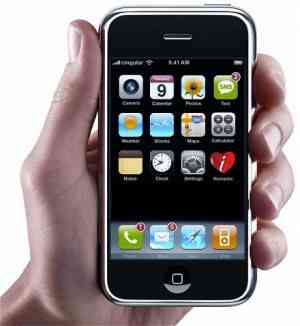 Everybody seems to sport an iPod these days -- commuters on the train, runners on the path, students in your class, citizens in the streets. While most of them are listening to music, and a few to a book downloaded off of Audible.com, a tiny group of ambitious souls is listening to educational material. This might be a recorded message from their company president, a sermon from their preacher, or an online lecture from their teacher. They are enjoying a podcast.